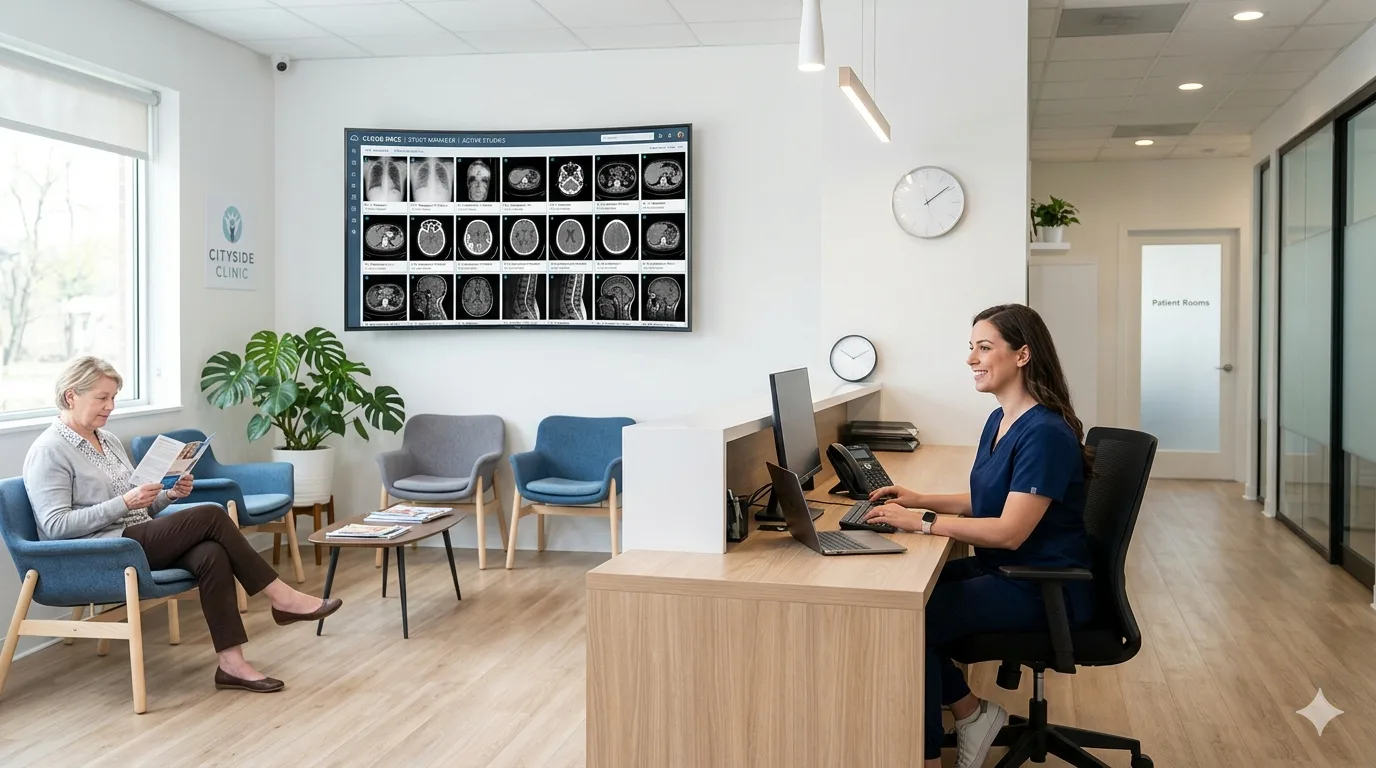
You run a small clinic. Maybe it is a two-physician family practice that orders imaging studies a few times a week. Maybe it is a ten-provider orthopedic group that generates hundreds of X-rays per month. Either way, you have a medical imaging problem, and it probably looks something like this:
Scans arrive on CDs that sit in a drawer until someone remembers to load them. Your referring physicians call asking for images you sent three weeks ago but that never arrived. A patient shows up with a USB drive and no one is sure which workstation can open the files. Your office manager has a filing cabinet full of radiology reports but no way to pull up the original images alongside them.
If any of this sounds familiar, a cloud PACS small clinic setup might be the single most practical technology upgrade you make this year. This guide walks you through what cloud PACS actually is, what to look for, how to set it up, and what it will cost — written for practice managers and administrators, not radiologists.
What Is Cloud PACS? A Plain-Language Definition
PACS stands for Picture Archiving and Communication System. It is the software that stores, organizes, and displays medical images — X-rays, CT scans, MRIs, ultrasounds, and anything else that produces a DICOM file. DICOM is the universal standard format for medical imaging, the equivalent of PDF for radiology.
Traditional PACS requires on-premise servers, dedicated IT staff, and a capital expenditure that can run anywhere from $50,000 to $500,000 depending on the size of the installation. For a large hospital system, that is a line item. For a small clinic, it is a non-starter.
Cloud PACS moves all of that infrastructure off your premises and into a secure data center. Your images are stored remotely, accessed through a web browser or lightweight application, and managed by the cloud provider’s engineering team. You do not buy servers. You do not hire a PACS administrator. You pay a predictable monthly or per-study fee and get enterprise-grade imaging infrastructure without the enterprise-grade price tag.
Think of it the way you think about email. You could run your own email server in your office. You do not. You use Gmail or Outlook because it works, it is maintained by someone else, and you pay a fraction of what in-house infrastructure would cost. Cloud PACS is the same idea applied to medical imaging.
Key Features to Look for in a Cloud PACS Solution
Not every cloud PACS is built for small clinics. Many were designed for hospitals and then marketed downward, which means they carry complexity and cost you do not need. Here are the features that actually matter for a small practice.
DICOM Support and Standards Compliance
This is non-negotiable. Your cloud PACS must support DICOM send, receive, query, and retrieve. It should accept DICOM files from any modality — X-ray machines, CT scanners, ultrasound units, and portable imaging devices. If a vendor cannot confirm full DICOM compliance, move on.
Look for support for DICOM Web (DICOMweb) as well. This is the modern, HTTP-based protocol that makes it straightforward to integrate with other systems, including electronic medical records and referring physician portals.
HIPAA Compliance and Security
If your clinic is in the United States, your cloud PACS must meet HIPAA requirements. This means encryption of data in transit (TLS 1.2 or higher) and at rest (AES-256), role-based access controls, audit logging of every access event, and a Business Associate Agreement from the vendor.
Do not take a vendor’s word for it. Ask for their security documentation. Ask about their hosting provider’s compliance certifications (SOC 2 Type II, HITRUST, or equivalent). If they hesitate, that is your answer. For a deeper look at what HIPAA compliance means in practice for medical image sharing, see our guide on HIPAA, encryption, and expiring links.
Web-Based DICOM Cloud Viewer
A cloud PACS without a good viewer is just expensive storage. Your physicians and staff need to be able to pull up images from any computer, tablet, or phone with a browser — no special software installation required.
The viewer should support standard radiology tools: window and level adjustment, zoom, pan, measurements, and multi-frame scrolling for CT and MRI series. For a small clinic, diagnostic-quality viewing may not be required on every device — many practices use the cloud viewer for reference and send studies to a radiologist for formal reads — but the viewer should be responsive and fast enough to be clinically useful.
Sharing and Collaboration
One of the biggest advantages of cloud PACS for small clinics is the ability to share studies with referring physicians, specialists, and patients without burning CDs or faxing reports. Look for:
- Secure link sharing with expiration controls, so you can send a study to a specialist and have the link automatically deactivate after the consultation window closes
- Patient access portals that let patients view and download their own imaging studies
- Multi-location access if your practice operates across more than one site
AI Integration
This is no longer a future feature — it is a present differentiator. Some cloud PACS platforms now include or integrate with AI analysis tools that can flag abnormalities, prioritize urgent studies, and generate draft reports. For a small practice without in-house radiologists, AI-assisted analysis can add a layer of clinical decision support that was previously available only to large hospital systems. We cover the practical ROI of this in our post on AI-powered radiology for small practices.
Step-by-Step Cloud PACS Setup Considerations
Setting up a cloud PACS is simpler than deploying a traditional on-premise system, but it still requires planning. Here is what to think through before, during, and after the switch.
1. Assess Your Infrastructure
Internet connection. Cloud PACS depends on reliable internet. A single chest X-ray is roughly 10 to 50 MB. A CT study can be 200 MB to 1 GB. If your clinic has a basic consumer-grade connection, you may need to upgrade to a business-grade fiber or dedicated line. Most cloud PACS vendors recommend a minimum of 50 Mbps upload speed for smooth operation with moderate imaging volume.
Workstations. Since the viewer runs in a browser, your existing computers likely work fine. You do not need specialized radiology workstations unless your physicians are doing primary diagnostic reads on site. A modern browser on a reasonably current machine is sufficient.
Modality connectivity. Your imaging equipment — X-ray machines, ultrasound units, portable devices — needs to send studies to the cloud. This is typically handled by a small gateway appliance or software agent installed on your local network that receives DICOM sends from your modalities and securely forwards them to the cloud. Most vendors provide this gateway as part of the setup.
2. Plan Your Data Migration
If you have existing imaging studies on CDs, local drives, or an old PACS system, you need to decide what to migrate.
Option A: Migrate everything. Upload your entire historical archive to the cloud. This gives you a single, searchable repository but can take time depending on volume. Many vendors offer bulk migration tools or services.
Option B: Migrate on demand. Keep your old archive accessible and only upload studies as they are needed for current clinical care. This is faster to get started but means you are maintaining two systems during the transition.
Option C: Start fresh. Begin capturing new studies in the cloud and leave historical data where it is. This is the simplest approach and works well for clinics with minimal historical imaging.
Most small clinics choose Option B or C. The urgency of having every old study in the cloud is usually lower than the urgency of getting your current workflow running smoothly.
3. Configure Access and Roles
Set up user accounts with appropriate permissions. Not everyone in your clinic needs the same level of access:
- Physicians need full viewing and annotation capabilities
- Technologists need upload and basic viewing access
- Front desk staff may need patient lookup and sharing permissions only
- Billing staff may need report access without image viewing
Role-based access is a HIPAA requirement, but it is also good operational hygiene. The fewer people who can modify or delete studies, the fewer opportunities for accidental data loss.
4. Train Your Team
The technology is only as good as the people using it. Plan for a half-day training session covering:
- How to upload studies (from modalities and from manual uploads like CDs)
- How to search, retrieve, and view studies in the cloud viewer
- How to share studies securely with external providers and patients
- What to do when the internet goes down (most cloud PACS solutions offer a local cache for recently accessed studies)
Most cloud PACS vendors offer onboarding support. Take them up on it. A guided setup prevents the kind of early frustrations that lead teams to abandon new tools.
5. Go Live and Monitor
Start with a parallel run if possible. Send studies to both your old workflow and the new cloud PACS for one to two weeks. This lets your team build confidence and catch any configuration issues before cutting over entirely.
After going live, monitor for:
- Upload failures or slow transfers (indicates network issues)
- Studies that do not appear in the expected patient record (indicates DICOM routing configuration problems)
- User complaints about viewer performance (may need browser or workstation updates)
Cost Considerations: What Cloud PACS Actually Costs
Pricing models vary across vendors, and the differences matter for small clinics operating on tight margins.
Per-Study Pricing
Some vendors charge per study uploaded or stored. This works well for very low-volume clinics — if you only handle 20 to 30 imaging studies per month, paying $1 to $5 per study keeps your costs under $150 per month. But costs can spike unpredictably if your volume increases, and you may face additional charges for storage beyond a base tier.
Flat Monthly Rate
Other vendors charge a flat monthly fee per user or per site. This is more predictable and usually more economical for clinics with moderate to high volume. Monthly fees for small practice radiology software typically range from $99 to $500 per month depending on features, storage, and number of users.
Hidden Costs to Watch For
- Migration fees. Some vendors charge separately for data migration services
- Storage overages. Check what happens when you exceed your included storage allocation
- Support tiers. Basic plans may include email-only support; phone and priority support often costs extra
- Gateway hardware. The local DICOM gateway appliance may be included, rented, or sold separately
- Viewer licenses. Some vendors charge per concurrent viewer session, which can add up if multiple physicians access the system simultaneously
Ask for a total cost of ownership estimate that includes all of these items. The monthly subscription is the starting point, not the whole picture.
How Medixshare Fits
AI Bharata built Medixshare for exactly this scenario — clinics and practices that need cloud PACS for hospitals and small practices without the complexity and cost of enterprise systems.
The platform handles DICOM storage, a browser-based viewer, secure sharing with expiring links, and patient access — all with HIPAA-grade security. Studies upload from any DICOM-compatible device, and your team accesses everything through a web browser. No on-premise servers. No IT department required.
What sets Medixshare apart from alternatives like PostDICOM, Medicai, or SonicDICOM is AI Bharata’s integration of AI-assisted analysis directly into the platform. Instead of buying a cloud PACS from one vendor and an AI analysis tool from another, Medixshare combines both. Your imaging studies are stored, viewable, shareable, and analyzable in one place.
For small clinics, this means you get the features of an enterprise imaging platform at a price point designed for independent practices. You can explore plans on our pricing page or see how the platform serves multi-location organizations on our hospitals page.
Getting Started
Setting up a cloud PACS for your small clinic does not need to be a six-month IT project. With the right platform, you can be up and running in days, not months. The steps are straightforward: assess your internet and equipment, choose a migration approach, set up roles, train your team, and go live.
The hard part is not the technology — it is making the decision to move away from CDs, local drives, and ad hoc sharing methods that have been “good enough” for years. The practices that make the switch consistently report the same thing: they wish they had done it sooner.
If you are ready to see what an affordable PACS solution looks like in practice, start a free trial at Medixshare and upload your first study. No contracts, no hardware purchases, no IT department required.